In today’s fast-paced world, everyone wants their work to be done quickly and easily with Keyboard Shortcuts for Microsoft. Especially when you use software likeMicrosoft 365 SupportOffice, saving time becomes very important. If you use only the mouse in the old way, the work may take more time.
That is why learning Keyboard Shortcuts is very beneficial. These small key combinations make your work faster, and you can do more work in less time. It may seem difficult at first, but once you get used to it, your work becomes much easier and faster.
What are Keyboard Shortcuts?
Keyboard Shortcuts are actually a way of pressing a few keys on the keyboard at the same time, which allows you to do different tasks very easily. It does not require using a mouse, which increases the speed of work.
When you use these shortcuts, not only do you save time, but you can do more work with less effort. That is why they are very beneficial for anyone who works on a computer every day.
Important and useful Shortcuts
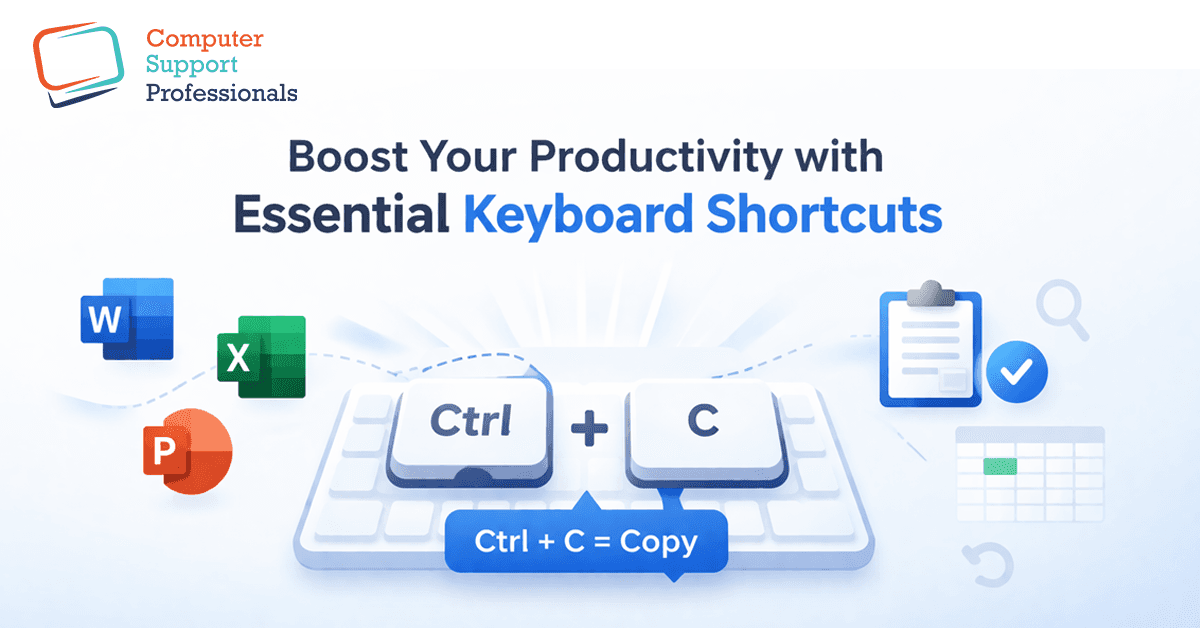
Copy (copy something) → Ctrl + C
Paste (paste something copied) → Ctrl + V
Cut (cut and copy something) → Ctrl + X
Undo (undo previous action) → Ctrl + Z
Redo (redo undone action) → Ctrl + Y
Shortcuts for Microsoft Word
Select All → Ctrl + A
Bold → Ctrl + B
Copy → Ctrl + C
Font Dialog → Ctrl + D
Center Align → Ctrl + E
Find → Ctrl + F
Go To → Ctrl + G
Replace → Ctrl + H
Italic → Ctrl + I
Justify → Ctrl + J
Insert Link → Ctrl + K
Left Align → Ctrl + L
Increase Indent → Ctrl + M
New Document → Ctrl + N
Open → Ctrl + O
Print → Ctrl + P
Remove Paragraph Formatting → Ctrl + Q
Right Align → Ctrl + R
Save → Ctrl + S
Hanging Indent → Ctrl + T
Underline → Ctrl + U
Paste → Ctrl + V
Close → Ctrl + W
Redo → Ctrl + Y
Cut → Ctrl + X
Undo → Ctrl + Z
Copy Formatting → Ctrl + Shift + C
Paste Formatting → Ctrl + Shift + V
Bullet List → Ctrl + Shift + L
Page Break → Ctrl + Enter
Top of Document → Ctrl + Home
End of Document → Ctrl + End
Delete Word Left → Ctrl + Backspace
Delete Word Right → Ctrl + Delete
Increase Font → Ctrl + Shift + >
Decrease Font → Ctrl + Shift + <
Increase Font → 1pt Ctrl + ]
Decrease Font → 1pt Ctrl + [
All Caps → Ctrl + Shift + A
Small Caps → Ctrl + Shift + K
Double Underline → Ctrl + Shift + D
Subscript → Ctrl + =
Superscript → Ctrl + Shift + =
Insert Date → Alt + Shift + D
Insert Time → Alt + Shift + T
F7 → Spelling Check
Shift + F3 → Change Case
Ctrl + Alt + 1 → Heading 1
Heading 2 → Ctrl + Alt + 2
Ctrl + Alt + 3 → Heading 3
Microsoft Excel Shortcuts
Ctrl + A → Select All
Bold →Ctrl + B
Copy → Ctrl + C
Fill Down → Ctrl + D
Flash Fill → Ctrl + E
Find → Ctrl + F
Go To → Ctrl + G
Replace → Ctrl + H
Italic → Ctrl + I
Ctrl + K → Insert Link
New Workbook → Ctrl + N
Ctrl + O → Open
Print → Ctrl + P
Fill Right → Ctrl + R
Save → Ctrl + S
Underline → Ctrl + U
Paste → Ctrl + V
Close → Ctrl + W
Cut → Ctrl + X
Redo → Ctrl + Y
Undo → Ctrl + Z
Jump Data → Ctrl + Arrow Keys
Select Data → Ctrl + Shift + Arrow
Ctrl + Space → Select Column
Shift + Space → Select Row
Ctrl + Shift + + → Insert Cell
Ctrl + - → Delete Cell
F2 → Edit Cell
Alt + = → AutoSum
Ctrl + ; → Insert Date
Insert Time → Ctrl + Shift + :
Ctrl + 1 → Format Cells
Strikethrough → Ctrl + 5
Ctrl + Shift + L → Filter
Previous Sheet → Ctrl + Page Up
Ctrl + Page Down → Next Sheet
Alt + Enter → New Line in Cell
Ctrl + ` → Show Formulas
Currency Format → Ctrl + Shift + $
Ctrl + Shift + % → Percentage
Date Format → Ctrl + Shift + #
Ctrl + Shift + ! → Number Format
Table → Ctrl + T
Ctrl + Shift + ~ → General Format
Add Border → Ctrl + Shift + &
Ctrl + Shift + _ → Remove Border
Copy Value → Ctrl + Shift + ”
Ctrl + Alt + V → Paste Special
Shift + F11 → New Sheet
Ctrl + Shift + U → Expand Formula Bar
Shortcuts for Microsoft Outlook
Write a new email → Ctrl + N
Send an email → Ctrl + Enter
Reply → Ctrl + R
Reply All → Ctrl + Shift + R
Forward an email → Ctrl + F
Create a new message → Ctrl + Shift + M
New task → Ctrl + Shift + K
Create a new appointment → Ctrl + Shift + A
Add a new contact → Ctrl + Shift + C
Open Mail view → Ctrl + 1
Open Calendar → Ctrl + 2
View Contacts → Ctrl + 3
Ctrl + 4 → View Tasks
View Notes → Ctrl + 5
Mark an email as read → Ctrl + Q
Mark an email as unread → Ctrl + U
Search → Ctrl + E
Print → Ctrl + P
Open an email → Ctrl + O
Save as draft → Ctrl + S
Close window → Ctrl + W
Move an email to another folder → Ctrl + Shift + V
Open Inbox → Ctrl + Shift + I
Ctrl + Shift + O → Open Outbox
Open Address Book → Ctrl + Shift + B
Alt + S → Send
Alt + R → Reply
Forward → Alt + F
Alt + H → Home Tab
View Tab → Alt + V
Alt + N → Insert Tab
F9 → Send/Receive
F7 → Spell Check
Insert → Flag Email
Flag Options → Ctrl + Shift + G
Meeting Request → Ctrl + Shift + Q
Reply Meeting → Ctrl + Alt + R
Forward Meeting → Ctrl + Alt + F
Accept Meeting → Ctrl + Alt + A
Tentative → Ctrl + Alt + T
Decline → Ctrl + Alt + D
New Task Request → Ctrl + Shift + U
New Folder → Ctrl + Shift + E
Advanced Find → Ctrl + Shift + F
Go to Folder → Ctrl + Shift + Y
Switch Window → Ctrl + Shift + Tab
Next Window → Ctrl + Tab
Journal Entry → Ctrl + Shift + J
New Office Doc → Ctrl + Shift + H
Close Window → Esc
Why are Keyboard Shortcuts important?
The biggest advantage of using Keyboard Shortcuts is that it saves you time. When you repeatedly use the keyboard instead of the mouse, the work is completed faster. In this way, you can do more work at the same time, and your efficiency also increases.
In addition, Keyboard Shortcuts help you work professionally. A user does not need to use the mouse every time, which makes the work easier. When you remember these shortcuts, your work becomes smooth and fast, and you also make a good impression on others.
Conclusion
If you useMicrosoft 365Office every day, learning Keyboard Shortcuts can be very beneficial for you. At first, they seem a little difficult and are not easy to remember, but if you practice a little every day, you will gradually remember them.
Ultimately, when they become your habit, your work becomes much faster and easier than before. Also, user can do more work in less time, and your productivity increases many times. Furthermore, which allows you to achieve better results in your work.