

Method 1: Use the Junk Email Filter
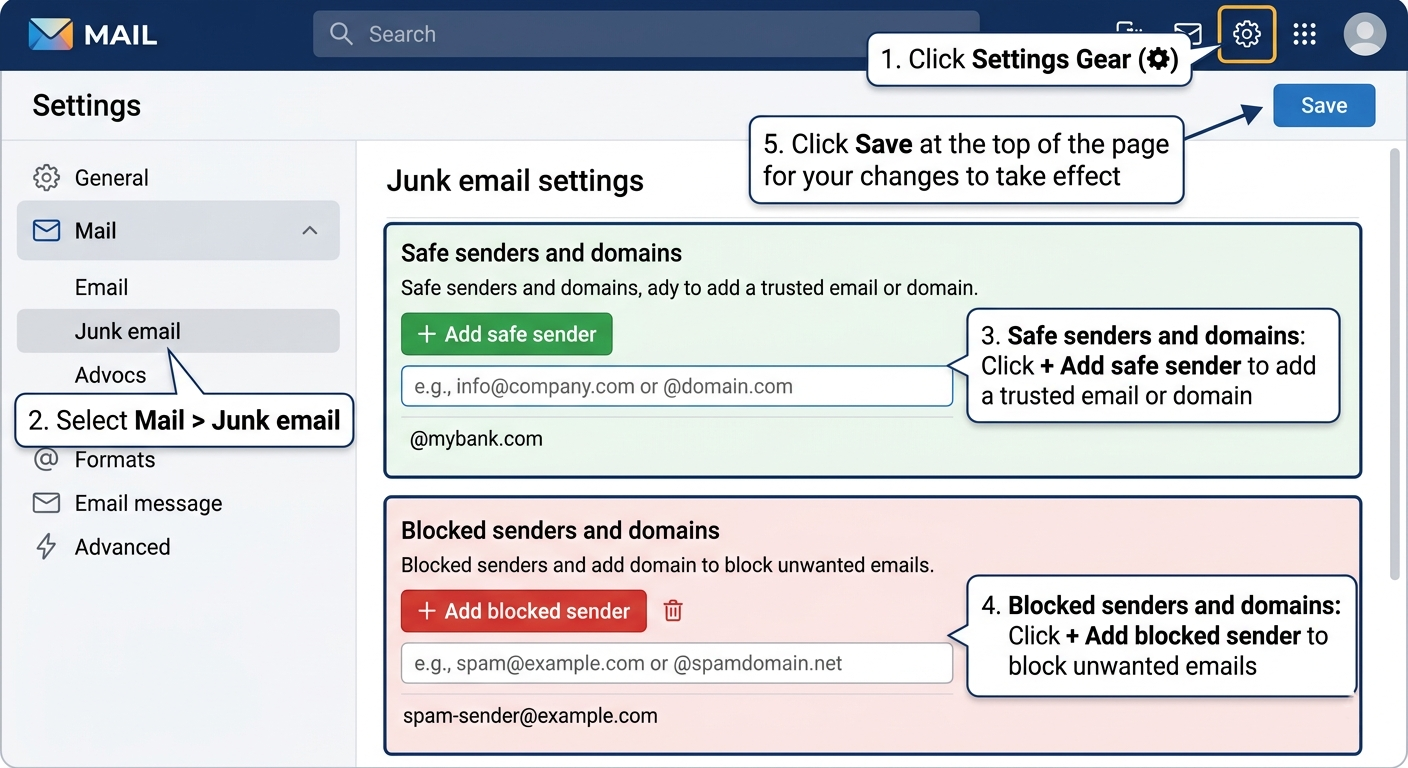
For Outlook on the Web (Office 365, Outlook.com) or the New Outlook for Windows:
- Click the Settings icon in the top-right corner.
- Select Mail > Junk email.
- Under Senders, you’ll see two sections:
- Safe senders and domains: Click + Add safe sender to add an email address or domain you trust (e.g., @mybank.com).
- Blocked senders and domains: Click + Add blocked sender to add the spam email address or domain you want to block.
- Click Save at the top of the page for your changes to take effect
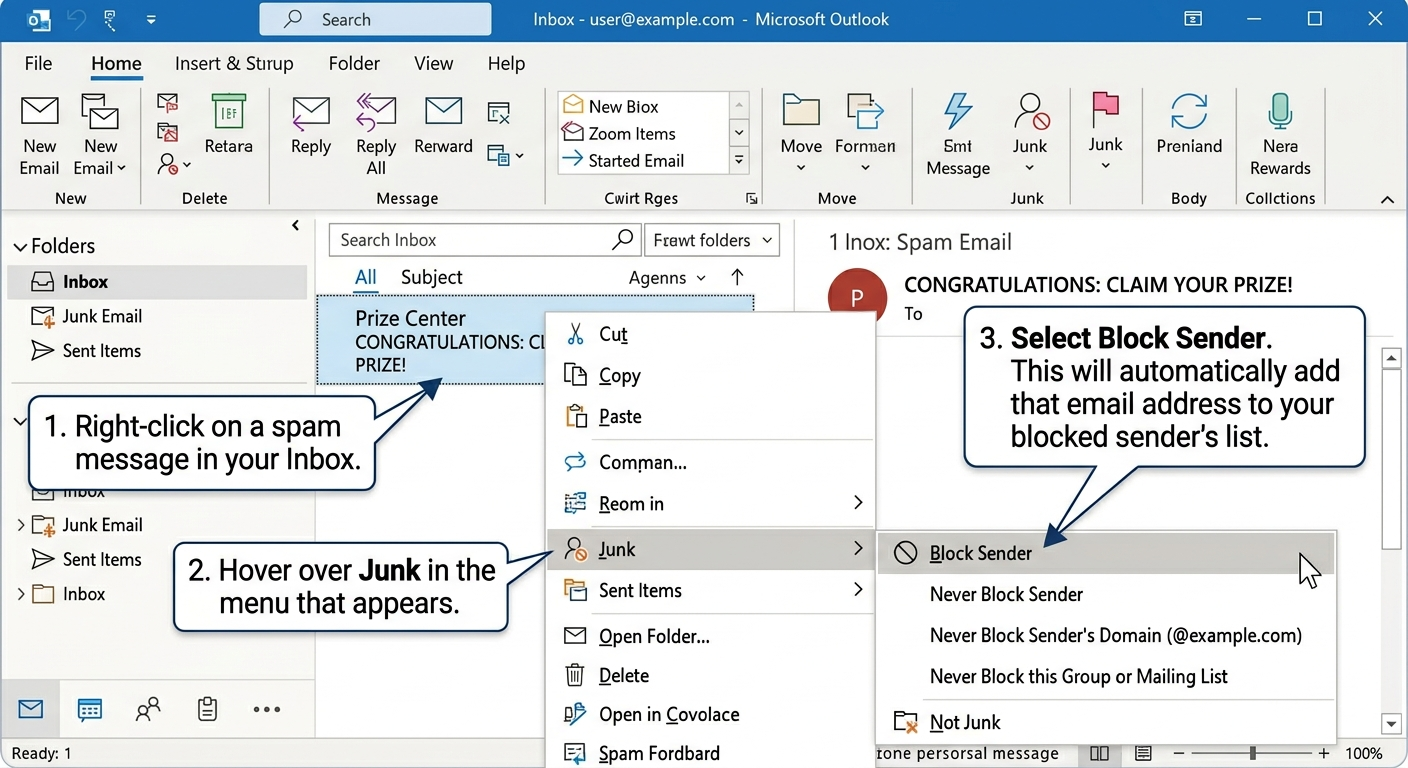
For the Classic Outlook for Windows (Desktop App):
- Right-click on a spam message in your Inbox.
- Hover over Junk in the menu that appears.
- Select Block Sender. This will automatically add that email address to your blocked sender’s list.
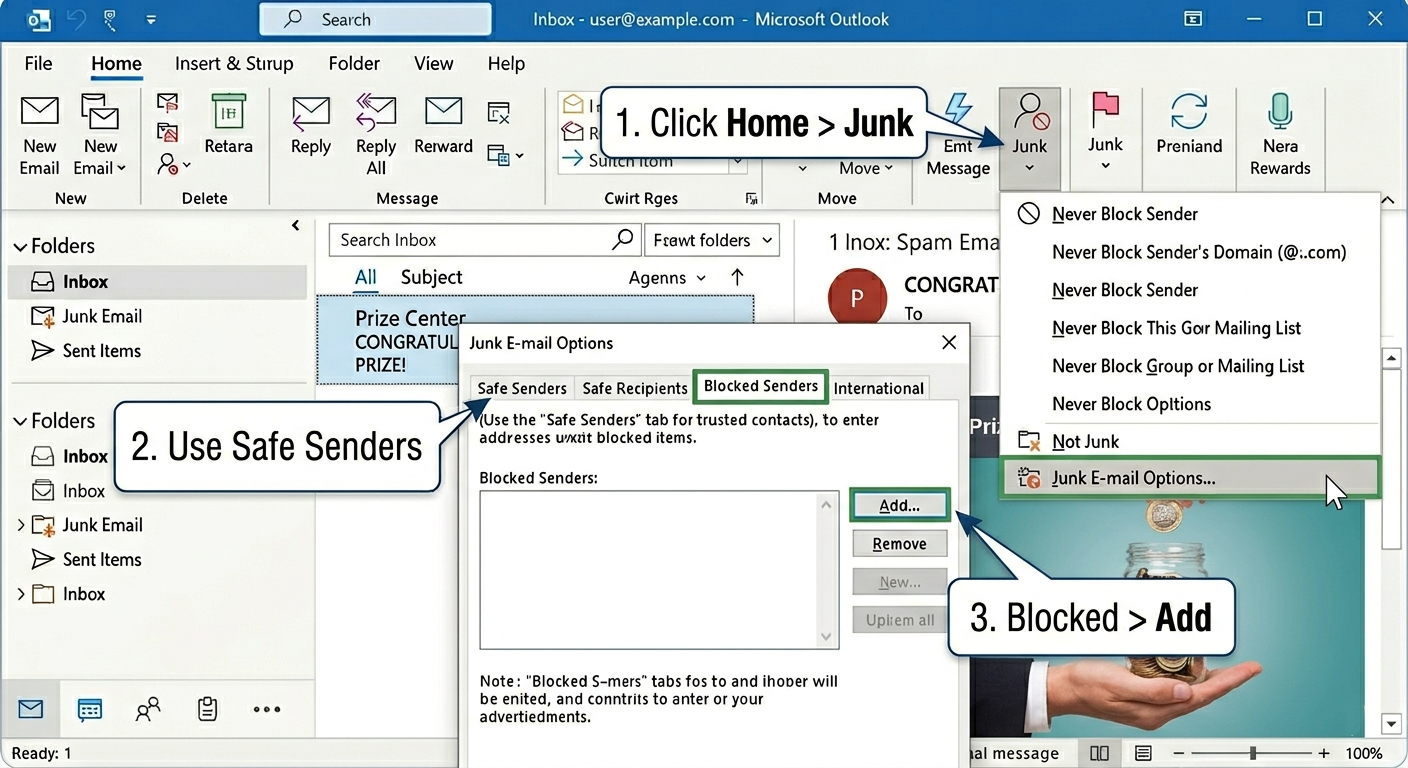
Alternatively, see the full list:
- Go to the Home tab and click Junk in the Delete group.
- Select Junk E-mail Options… to open the settings window.
- Go to the Blocked Senders tab and click Add… to enter email addresses or domains. Use the Safe Senders tab for trusted contacts
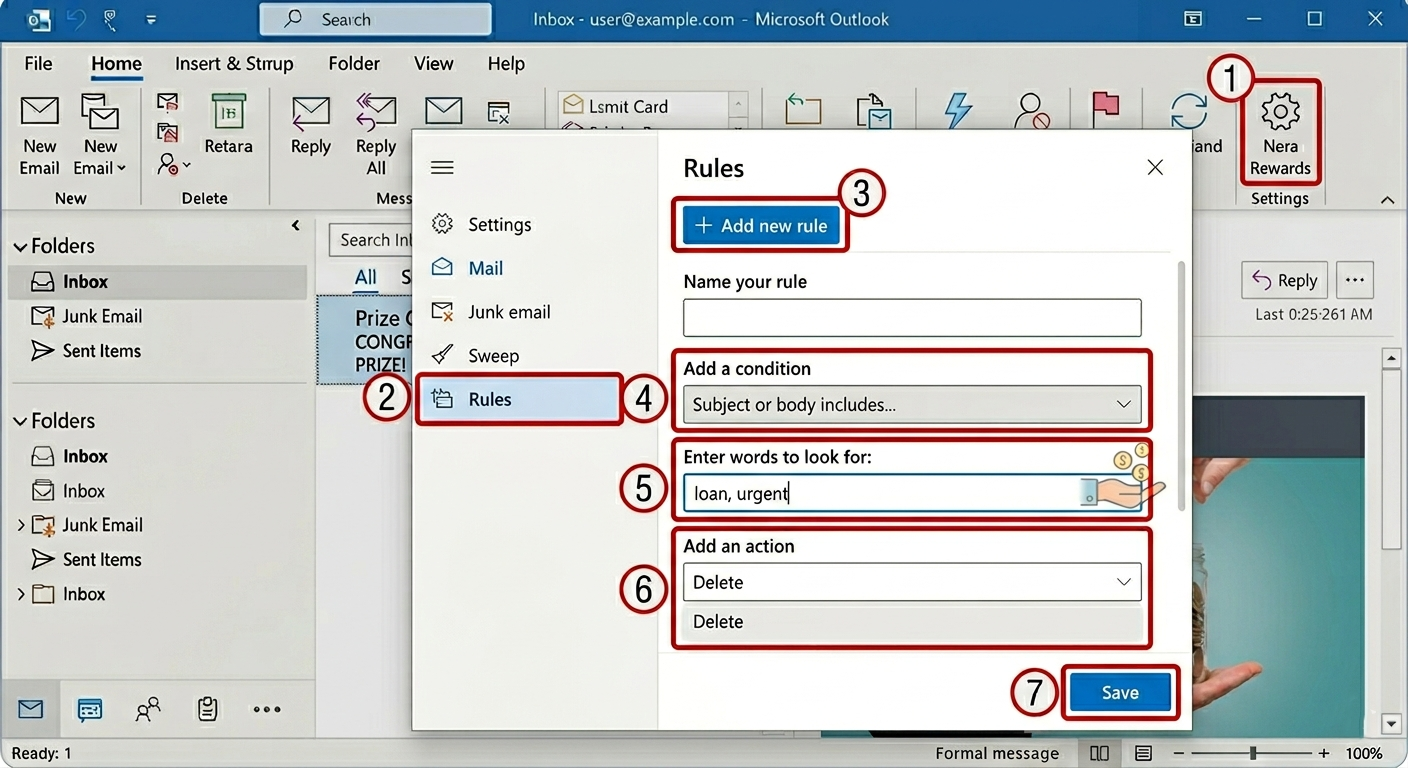
Method 2: Create Rules to Target Keywords
- Open your Settings menu.
- Look for the Rules section (often under Mail > Rules).
- Create a new rule.
- Set a condition like Subject includes… or Body includes….
- Enter the keyword or phrase you want to block.
- Set the action to Delete Mark as junk, or move to folder (e.g., a “Spam” folder you check later).
- Save the rule.
We hope this guide helps you take control of your inbox. What type of spam are you seeing the most of? Knowing whether the problem is specific senders or constant keyword-based messages could help you decide which method to try first.